

Open a model
Open a PyTorch model in your editor or coding agent. For JAX and Flax, use the framework guide.
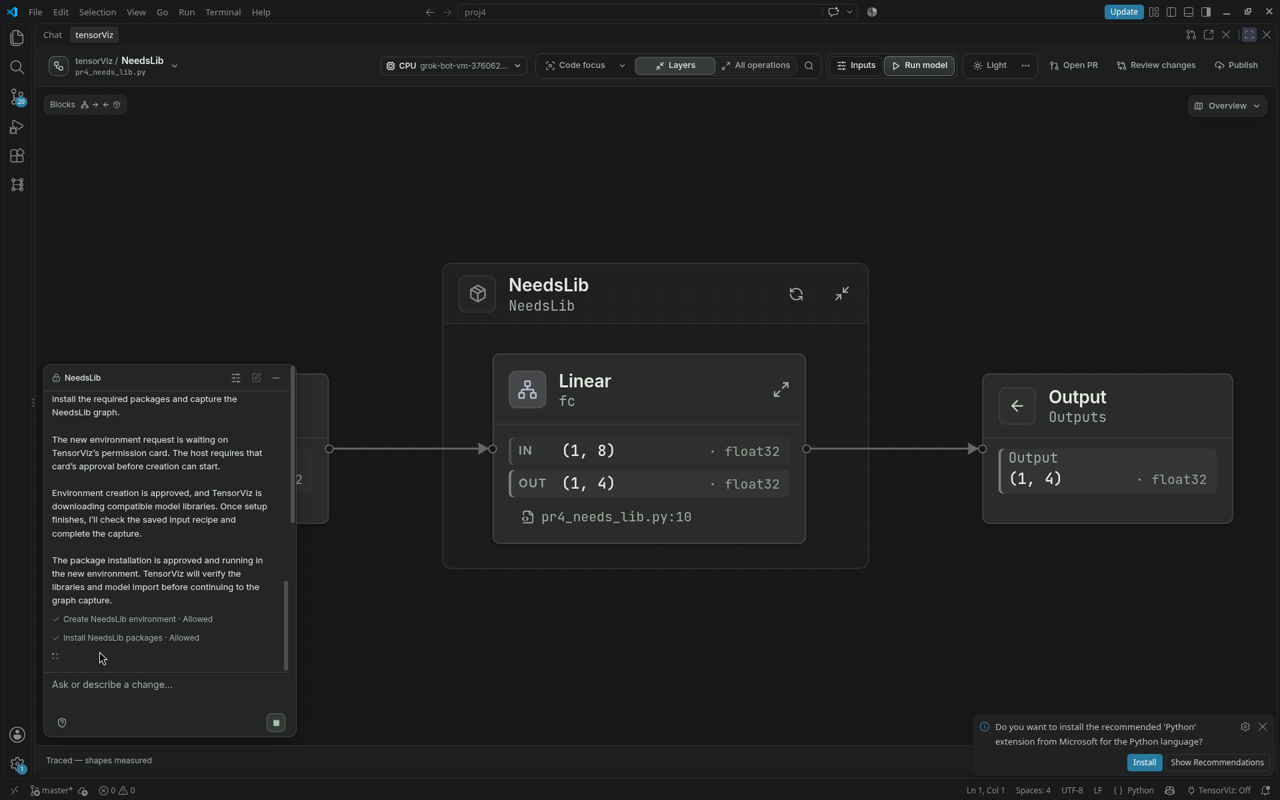
In your editor
Start in the tensorViz panel beside chat. tensorViz: Get Started opens the same panel; the extension no longer opens a separate welcome guide. Its starting screen offers Open Folder, discovered models and runtime setup when needed.
- Open the folder containing your model.
- Click Open as Graph above the model class. You can also select it in tensorViz → Models, or run tensorViz: Open as Graph.
- If setup is needed, choose Set up project with agent. The agent checks the project’s Python environment and inputs, requests approval for required library installation, and continues opening the same model.
- Use Set up manually to choose Python and complete the inputs yourself. Existing saved setup is reused where compatible.
The starting screen's Open as Graph uses the active Python file, or a visible Python editor or selected text tab when the panel has focus. Class choices stay within that file. If no host Python file is selected, it offers workspace models. The action above a class always opens that exact file and class.
Python and model inputs are steps in the same setup sidebar. Closing it leaves one Complete setup reminder; returning resumes the unfinished step. The completed Python selection and edited inputs are retained.
A complete setup is saved in tensorviz.toml. TensorViz captures one forward call and opens the graph beside your code.
Inspect source only opens a preview without running the model. A capture runs your local model code and describes only the inputs and mode you chose.
In your coding agent
Install the plugin, start a new chat in your model folder, and ask:
Use TensorViz to open my model and show its graph. Ask me for any missing Python environment or example inputs.
If several models are present, include the file and class name. Complete the permission and setup prompts.
After an edit
Saving your model or a tracked dependency automatically validates the open model by default. TensorViz reuses compatible saved setup. To run only when you choose, set tensorviz.traceOnSave to false, then use Run model or Run again, review the setup, and choose Run.
An eligible identical CPU result can be reused from the execution cache. A brief Python safety check still runs; Run fresh requests a new model execution.
Saves within 1.5 seconds are combined. Typing, unchanged saves, unrelated files, source-only inspection and open source reviews do not start runs. Accept/Apply saves and runs once; an unchanged save does not restart it.
Showing, hiding, or exploring the Canvas does not start another capture.
Choose a trace tier
tensorviz.traceTier applies to graph capture without a saved profile. real is the default. Experimental fake uses shape-only tensors and retries once with real tensors if values are needed. Experimental auto starts with real tensors, then uses fake tensors for models previously counted at 150 million parameters or more. A large model that needed a real retry stays real. Saved profiles, validation and reviewed candidates use real tensors.
Models inside a larger workspace
A nested model uses its project root for imports, tensorviz.toml, generated helpers and capture. Starting at the model’s directory, TensorViz stops at the first tensorviz.toml, pyproject.toml, setup.py, setup.cfg or .git, or at a directory whose name cannot be a Python module component. It never searches above the owning workspace. Add project metadata at the intended root when the boundary would otherwise be ambiguous. Source links still open the original workspace files.
If you get stuck
| What you see | Next step |
|---|---|
| No Python or missing libraries | Choose or repair an environment |
| Missing constructor values or input shapes | Set up model inputs |
| A previous result is reused | Run fresh or change cache mode |
| Your model is not listed | Use Choose a Python file… in Open as Graph |
Discovery, prompts, and nested projects
Opening reference covers model discovery, graph prompts, saved state, and project boundaries.