

tensorViz coding-agent plugin
The plugin lets Claude Code, Codex, or Cursor open a local PyTorch model, capture one forward call, and read the graph. It shows the same canvas as the editor extension. You do not need the extension to use the plugin.
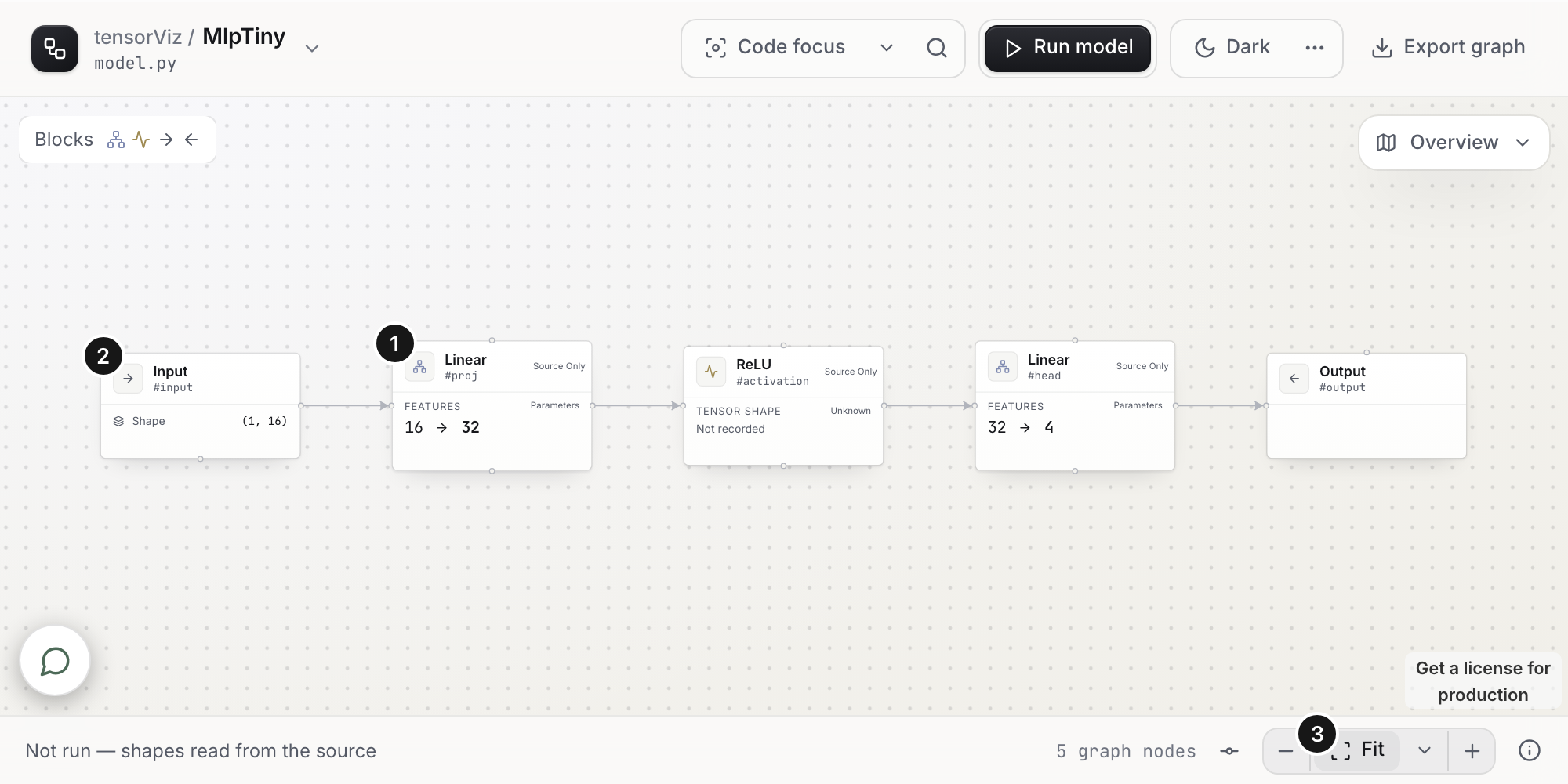
Use one TensorViz host per agent. Do not connect the same agent to both the plugin and the extension.
Install
Use your client’s terminal CLI. If it is not installed, start with the installation requirements.
The published plugin is a preview for Apple Silicon macOS with CPython 3.12 and CPU capture. It downloads a verified compiled runtime on first connection, so you do not need a separate Node.js installation. Allow internet access for that first download.
Codex:
codex plugin marketplace add tensorviz-org/tensorviz-plugins
codex plugin add tensorviz@tensorviz-standalone
Claude Code:
claude plugin marketplace add tensorviz-org/tensorviz-plugins
claude plugin install tensorviz@tensorviz-standalone --scope user
Cursor: follow Install in Cursor.
For a local source archive, see Codex and Cursor local installation. Non-interactive Codex installation needs sh /path/to/tensorviz/plugins/tensorviz/scripts/install.sh --apply --host plugin. To keep a current connection, use --apply --host existing --connection NAME with a name from the installer preflight.
T3 Code uses your Codex profile. See the public catalog.
Start a new chat afterward. Platform limits and source builds are on the Install page.
First graph
- Open your model project in the client and start a new chat.
- Ask, for example: "Open
Netinmodels/net.pyas a TensorViz graph." - When asked, choose a CPython 3.12 environment that can import the model, and confirm example inputs.
Opening a graph executes one forward call. Ask to inspect source only if you want a preview that does not run the model. Saved tensorviz.toml recipes are reused. After you edit the source, ask the agent to refresh the graph.
Model graph panel
Ask the agent to show the Model graph panel. Clients without a panel can open the graph in a local browser page instead. An empty panel does not start Python.
Closing the panel does not cancel a capture or edit source. Reopen Model graph if it disconnects; the capture is kept.
Permissions
On first use, TensorViz asks for permission to run model and setup code, save tensorviz.toml, and install reviewed dependencies in the selected environment. That permission applies to your OS user across projects; your client’s tool controls still apply.
- Model code runs with your user permissions.
- Graph text returned to the agent can become part of that client's conversation.
- Consent does not start a model on its own. Unknown inputs and interpreter choices still need an answer.
- Uninstalling the plugin does not delete the saved permission.
Disable the plugin in your client to stop that client from using its tools. Source-build status and revocation commands are in the source-package reference.
Help
| Problem | What to try |
|---|---|
| No tensorViz tools in a chat | Check that the plugin is enabled, then start a new chat |
| Duplicate tools | Disable the older TensorViz plugin or MCP entry. Keep one host |
| Python environment rejected | Select CPython 3.12 for this preview |
| Capture succeeds but no graph appears | Ask the agent to show the Model graph panel or open the browser graph |
More: environment recovery, setup and inputs, support and compatibility.
Develop the plugin
Building from source, the source archive installer, service details, and panel limits are in the plugin reference and plugin build.