

Python environments
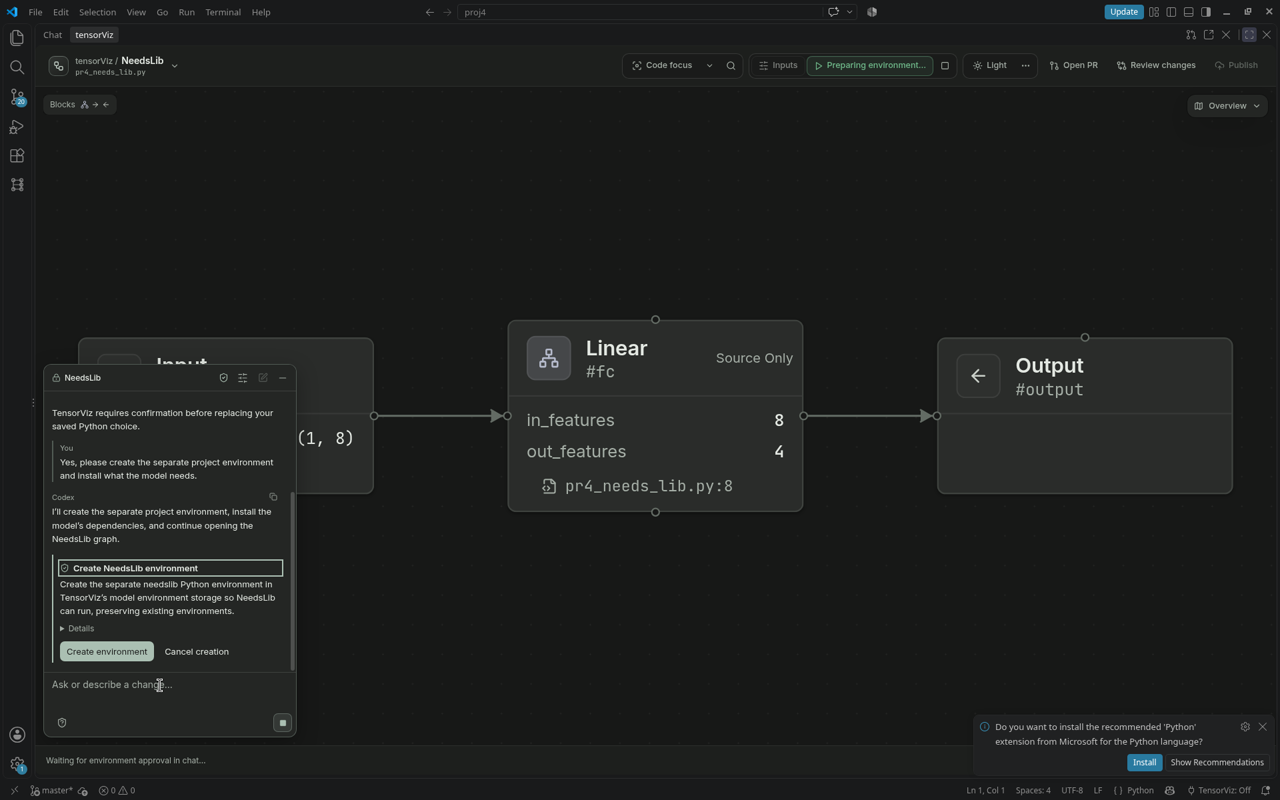
TensorViz needs Python to run your model and record tensor shapes. In the editor, choose Set up project with agent to have your coding agent check the project, prepare Python and test inputs, and continue to the graph. By default, chat asks before creating an environment, building dependencies, or installing packages. The agent explains each proposed operation and supplies its action labels. Expand Details for the host-recorded operation, paths and exact versions. Stop cancels a pending request.
The shield icon beside the composer opens this chat's permission menu. The current mode is checked; hover or focus another mode for its explanation:
| Mode | What happens |
|---|---|
| Ask every time | Review each environment change. This is the default. |
| Auto setup | Automatically create an isolated environment and install its packages. Ask before source builds or changes to existing environments. |
| Full setup access | Automatically approve all supported environment setup actions, including source builds and existing-environment changes. |
While the agent prepares an explanation, the operation remains paused and no approval button is shown. The generated explanation cannot change the operation or grant permission. Automatic approvals appear as Auto-approved in the conversation. They record permission, not successful installation. Changing the mode can approve a waiting request when its action is covered; switching back affects future reviews, not work already approved. New chats return to Ask every time. Source edits keep their existing review. Machine commands always need explicit approval in every mode, including Full setup access. Their Details show the exact executable, arguments, working directory and timeout. They can access machine files and the network; they run without a security sandbox.
The setup screen keeps the explanation short. Expand Learn more for how the agent helps and the current setup details. The same sidebar shows Python and Model inputs, with a check beside completed steps. If you close it, Complete setup resumes the unfinished step and preserves your choices. Python completion is published as soon as its checks pass. The same agent then continues to model inputs, saves setup and captures the graph. If it needs a checkpoint, dataset or other missing choice, answer in the same chat.
Choose an environment
Choose Set up manually if you want to select Python yourself. Reuse the environment that already runs your model, or create a separate model environment. Setup options returns to the agent route without losing your manual choices. You can also run tensorViz: Select Python Environment. For the plugin, tell your agent which environment or interpreter belongs to the project.
TensorViz Python is the Python provided by TensorViz and shared across models. Expand Interpreter details to inspect its complete path and version details.
Your model’s Python and TensorViz’s service Python can be different. Changing the model environment does not mean reinstalling the service.
On the first launch, Setting up tensorViz… prepares the service runtime. Download progress shows received bytes and the total when the server supplies it; updates continue as bytes arrive, followed by verification, unpacking and dependency setup. You can cancel this preparation and try again later.
Saved Python choices belong to the model’s project root. A nested checkout or Python project has its own choice; unrelated models in the outer workspace keep their workspace choice. The saved environment row shows the project path.
When you open a model, TensorViz checks detected environments against the model’s libraries and recommends the one needing the fewest changes. An explicit choice is preserved. Save-triggered capture and Canvas agent help require a saved or configured environment; choose one explicitly if neither is available.
If only the project’s version pins differ, choose Try with installed versions. Through the extension’s MCP endpoint, follow the returned open_graph action use_installed_versions with the same requestId, openingId, and sourceDigest. This accepts the reported project pins for that project and interpreter during the session, installs nothing, and still checks capture-worker compatibility. Selecting the environment again resets the choice. For example, an old torch==2.0.0 project pin can conflict with the worker’s supported Torch versions; try an already installed compatible version instead of downgrading to the pin. Standalone plugin hosts offer this action only when their returned environment includes declaredPins.
Fix a setup problem
| Problem | What to try |
|---|---|
| Python is missing or incompatible | Select a compatible interpreter from the prompt |
| An import fails | Choose the environment where that library is installed, or review the proposed dependency setup |
| You need a new environment | Let the setup agent prepare it, or choose Set up manually → Create model environment and review the installation plan |
| TensorViz’s own service will not start | Run tensorViz: Repair runtime in the editor |
| The model fails during capture | Fix the reported Python error, save, and run again |
If setup fails, the same agent can inspect the actual exception, traceback and observed Python/device facts, read the project's setup files, and request a diagnostic command when needed. It checks the command's real output before explaining the blocker. A new environment cannot fix an unsupported platform; the agent must establish that cause from evidence. Expand Error details in chat for retained error evidence. Animated dots beneath the latest message show the agent working; they stop when the turn ends or needs your approval. Hover or focus the indicator for details. Approval, stopped and error states remain distinct.
The published plugin preview requires CPython 3.12 on an Apple Silicon Mac and targets CPU capture. See installation options for package requirements; local setup lists source-development versions.
Before installing dependencies
Check the selected environment and the proposed packages. TensorViz keeps permission prompts in the setup flow; starting a graph is not permission to make every environment change.