

Explore the graph
Start with a model open in TensorViz. The Canvas lets you explore its structure without rerunning it every time you change the view.
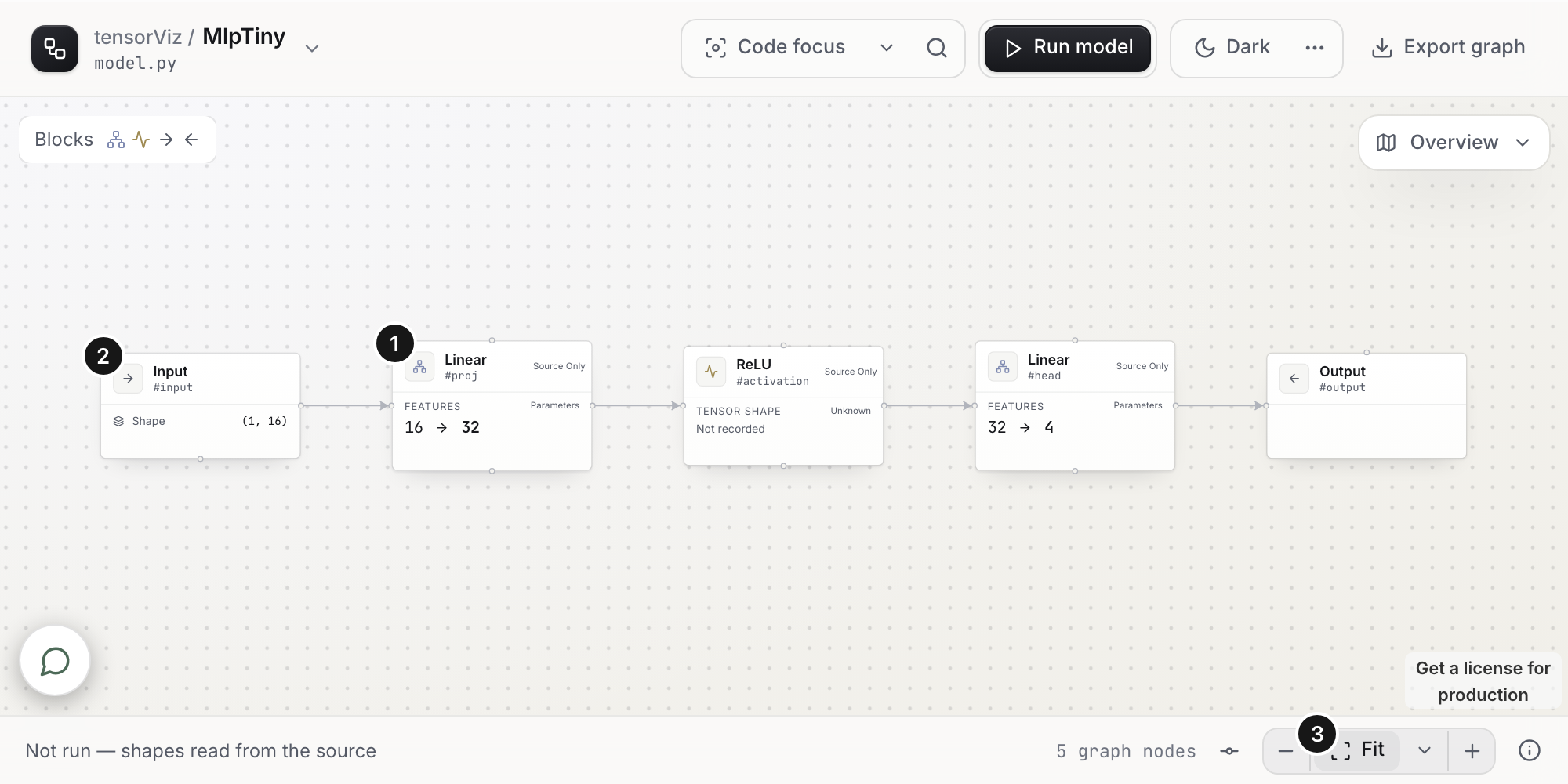
1 — Layers: follow the connections through the model. 2 — Input: the example shape comes from the source. 3 — Fit: bring the graph back into view. This example is a source preview; shapes are recorded only by a capture.
Start with these controls
| To… | Use… |
|---|---|
| See the architecture | Layers |
| See the captured operations | All operations |
| Look inside a module | Expand it, or enter it and use the breadcrumb to go back |
| Find a layer | Find a layer or ⌘/Ctrl+P |
| Change the example inputs | Inputs |
| Capture again | Run model / Run again |
| See more controls | Expand toolbar |
Pan and zoom to move around. Turn on code focus to reveal a selected layer's source beside the graph.
Read the shapes
IN and OUT rows show the tensors recorded for that operation. Not recorded means TensorViz does not have a shape for it.
Named arguments and dictionary results keep their recorded names. Unnamed values use numbered labels; see input and output names.
A captured graph describes the inputs and path from that run. Expanding, searching, or changing the layout does not execute your model.
Find what you need
Search by a name such as conv1, a type such as type=Conv2d, or a shape such as shape=256. Choose a result to jump to it. Hits inside a collapsed module stay grouped there until you open it.
Edit the model
Click a layer to edit supported constructor parameters, such as Linear out_features or Dropout p. Leave the field or press Enter to open a source draft through the same review and Accept path as agent proposals. Accept writes Python and refreshes the model; the canvas does not change the model before review.
Use the layer palette (Blocks), the inspector or the + on a supported connection to insert Linear, Dropout, LayerNorm, ReLU, GELU, SiLU, Sigmoid or Tanh after a declared layer. Set the new attribute name and constructor parameters, then choose Review insertion. Review deletion removes a declared layer or bypasses an activation with a supported deletion capability. A shared declaration affects all its calls; inspect the draft before Accept. Activation insertion on an exact captured operand uses its source capability. Declaration insertion on a connection is limited to single-output nodes. Insertion dimensions are explicit and are not inferred from recorded tensors.
Dropout inserts write source correctly; under eval mode the live capture hides unchanged Dropout/Identity calls unless More tools → Show unchanged calls (N) is on, while LayerNorm and Linear remain visible. Accepting a Dropout insertion reveals its new unchanged calls once after capture.
Captured constructor edits prefer exact source capabilities. Structural edits require an exact constructor declaration and a successful source plan. Navigation-only records, dynamic construction, unsupported expressions, control flow and ambiguous source edits show a limitation or refusal. Use the agent or edit Python directly for those cases. Free-form graph wiring, builder undo and code export remain unavailable in the live canvas. The floating Blocks family legend stays hidden.
Successful captures with the same source digest as the previous capture do not show capture-to-capture change badges.
Select the relevant layers and describe your change in Canvas chat. Choose your agent, model, and supported effort in chat settings; start a new chat to switch agents. Review the proposed Python changes before applying them.
After a matching capture, native and ACP Canvas agents automatically receive compact model context. Current facts can be reused without another capture; missing measurements and stale source stay explicit.
Make it comfortable
Use the sun/moon control for appearance, or More tools → Display settings → Appearance to follow your editor. Layout and appearance changes keep your capture.
For a saved snapshot, use Export and share. For changed Python, use Graph diff.